
How to Print iPhone Text Messages and iMessages
By: Johanna Parker
Posted in: iPhone Tips & Tutorials
Updated on: December 17, 2022
The majority of people in the world use the iPhone to communicate through text messages and iMessages every day. Have you ever wondered how much weight some text messages on your iPhone carry? They may be important because of different reasons, such as being used for study, work, court evidence, among other reasons. Have you got important iPhone text messages that you want to print for your records?
Unlike the iPhone photo app, the iPhone text messages app does not support AirPrint, so it is not just simple printing like you do for your photos. But there are several workarounds to print text messages from an iPhone. When viewing the text messages on your iPhone, hit edit, select all the required messages, and then email them somewhere. But by following this approach, you will lose all the date/time information. Another way to accomplish this is by taking a screenshot (press and release the Sleep/Wake and Home buttons simultaneously) and email it to yourself. If it's a long conversation, you have to take multiple shots to capture the whole conversation.
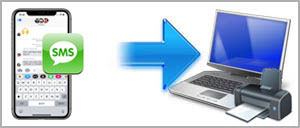
So in this guide, we will be focusing on the 3 easiest ways to print these texts from your iPhone. All the guidelines on how to do it step by step have been highlighted below:
Method 1: Print Text Messages from iPhone Using a Computer Software
This is the most easiest way to print text messages from iPhone with all the important information like date, timestamps, contact name, contact number and so on. You just need to download a computer software as per your operating system and follow these easy steps.
Step 1: Download and install iPhone Messages Transfer
-
First of all you will need to download the software as per your OS and install it on your system. Do make sure that iTunes is installed on your computer before you run this software on your computer
|
|
|


Step 2: Launch the program and connect iPhone to PC
-
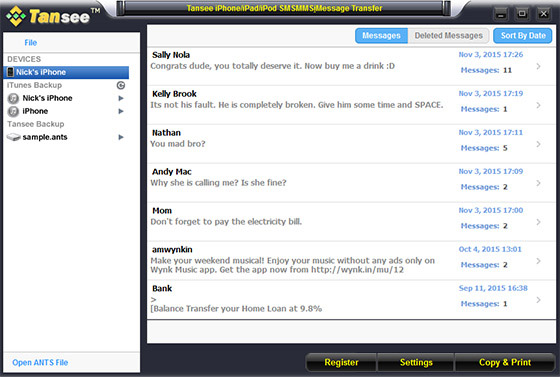
After installing the software, launch it and connect your iPhone to computer via USB cable. Program will automatically display all your iPhone SMS as shown in the following picture.
Step 3: Print iPhone text messages & iMessages directly
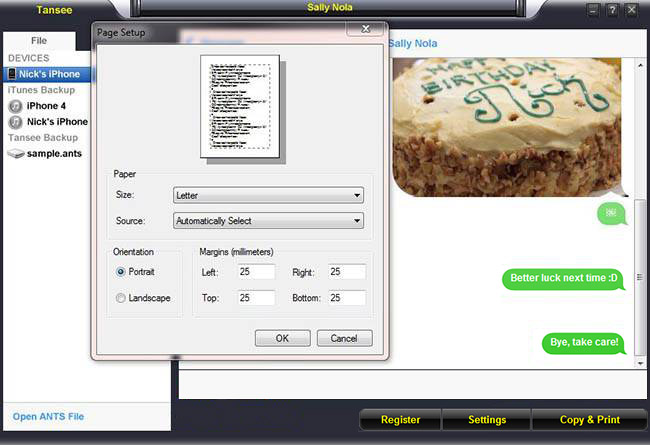
To print all or selected messages from a particular contact, select that contact, click the "Copy & Print" button and select the "Print" option from all the available options. Now select the text messages you want to print and click the "Start Print" button as shown in the picture below:
Step 4a: Copy SMS text messages from a particular iPhone contact
-
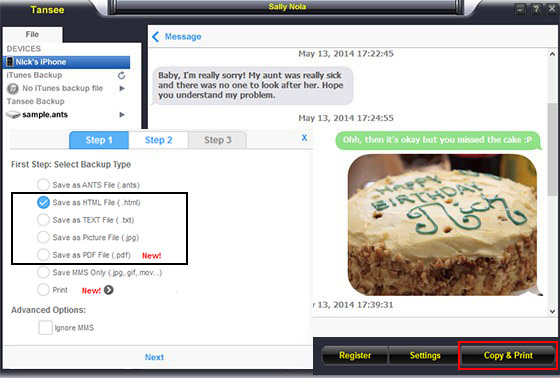
Click on any contact to check all SMS records associated with that contact. Now, click the “Copy & Print” button, choose HTML or PDF file format; these formats support print out (check step 4b and 4c) and click Next. You'll now need to click the "Start Copy" button and choose the file path to save the iPhone SMS file on your hard drive. You can also copy selected SMS from your iPhone to your computer.
Note: This program also allows you to directly print text messages and you can also transfer iPhone text messages to PC as a text and JPG (photo) format with this program.
Step 4b: Open the HTML or PDF file and print your iPhone text messages
Depending upon the choice you made in step 4a, your iPhone text messages will saved on your computer in either HTML or PDF format. You can follow the steps below to open the HTML or PDF containing your text messages and print them easily.
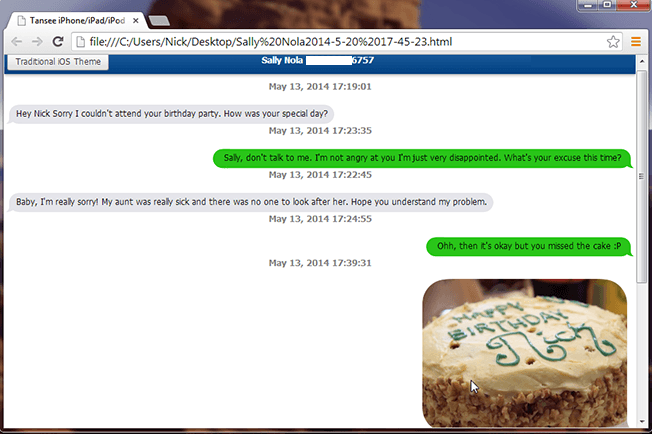
(a). Open HTML file in your browser and print
Double click on the HTML to open it with your default browser and then press CTRL+P (on a Windows PC) or Cmd-P (on a Mac) to print SMS messages off your iPhone.
Tip: With the new iOS theme supported by the HTML file, you can print your text messages almost exactly as they appear in your iPhone.
(b). Open PDF file in any PDF viewer and print (New)
-
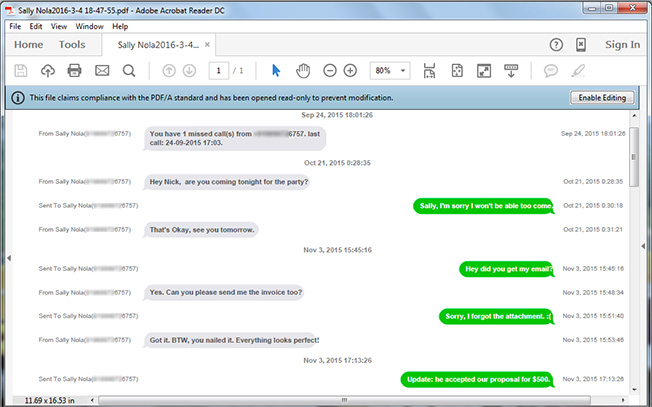
If you need your iPhone text messages for some legal proceeding, then PDF format can be quite useful for you. You can open the PDF file that you've created in step 4a in any PDF viewer, like Adobe Reader, and instantly print your text messages.
Note: This program exports iPhone text messages in PDF/A format which is specialized for the digital preservation of electronic documents.
-
Note: You can also make use of this program to backup or copy iPhone SMS to computer as a .txt and .ants (editable) file format.
Method 2: Print Text Messages from iPhone Using the Screenshot Method
Capturing the screenshots of your iMessages is a good solution for some users. This method works best for people who want to print limited text messages. Below are steps to print iPhone text messages screenshots. Let’s get started!
Step 1:
Connect your iPhone to PC using USB cable.
Step 2:
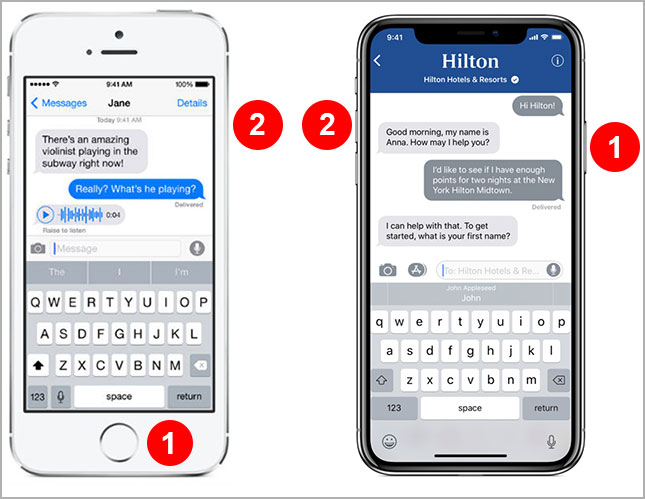
When the text messages that you need to print open, press the wake/sleep button and the home button simultaneously. If the home button is missing (on newer iPhones), you can press the "volume up" button and then the side button/power button on the right side simultaneously to capture the screenshot. If the sound of your phone is on, you will hear the sound as your camera takes the picture.
Step 3:
Open the photo app and the screenshot. Tap the "up arrow" key and then tap "Mail." This will email your screenshot from the roll of the camera to yourself. You can download that screenshot on your computer and print it using your printer.
Tip: If you are a Mac users, then there is no need to foward the screenshots to your email. You can use the AirDrop to quickly send these screenshots to your Mac directly from your iPhone.
Method 3: Print iPhone Text Messages after Forwarding Them to Email Address
For you to print text messages through Email, you will first have to copy and paste messages manually. Then send every conversation you need via email. Copy one conversation at a time. However, if you have many messages to be printed, this particular method will take some time. It is good to note that you will lose the time and date information using this method. Below are the steps to print text messages from iPhone via email method:
Step 1:
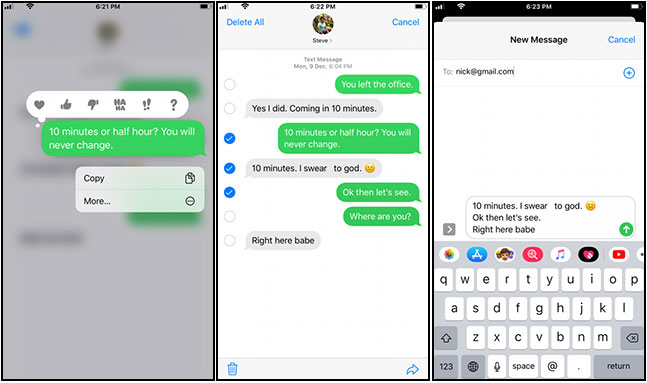
Run the iPhone messaging app then open the conversation you want to print.
Step 2:
Press and hold the conversation to be printed. Choose the option "More" and select all the messages you want to email.
Step 3:
Now, tap the "Forward (little curly arrow)" button in the bottom corner of the screen, then enter the email address into the “To:” form and tap the "Send" button.
Step 4:
Go to your email account right from the computer and print the email text with the conversation you need.
Final words - in some special cases, you can approach your network service provider and request a copy of your text conversations. However, most of them won't give you an easy access to your text messages history without a legal document like a court warrant. We hope this tutorial will help you print your iPhone text messages & iMessages with ease. If you have any questions, please don't hesitate to email us.
Mac OS Version