
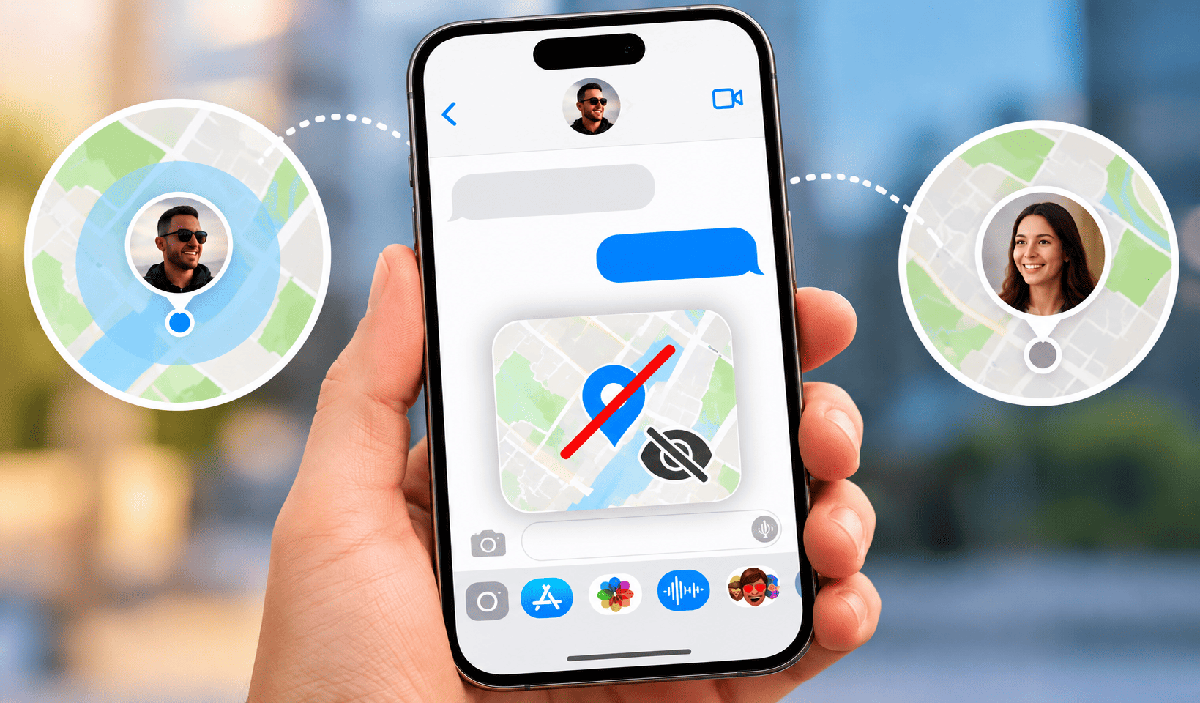
Let’s be honest—our phones know almost everything about us, and sometimes that feels a little too close for comfort. Sharing your location through iMessage or the Find My app can be helpful when meeting up with friends, keeping tabs on your kid after school, or simply letting someone know you got home safely. However, there are moments when you want to protect your privacy and stop sharing your real-time location without drawing unnecessary attention. The urge for personal space can pop up out of nowhere. Maybe you're dodging an awkward dinner invite, or perhaps you're planning to surprise a loved one and don't want your location to give the surprise away.
Why Can't I Turn Off Location Sharing Directly From Settings?
If you've ever poked around your iPhone settings, you'll notice Apple offers several ways to manage location sharing, including options through the Messages app, the Find My app, and those sneaky Location Services buried deeper in Settings. However, stopping location sharing without anyone knowing requires understanding the differences between these options. Sometimes people get notifications when you hit pause on location sharing—other times they might stumble across the fact only after realizing your little dot hasn’t moved all afternoon. There is no universal method that guarantees the change will remain completely undetected.
The good news is that you don’t have to go nuclear by blocking contacts, revoking location access from all the contacts in Messages, or turning off every location-based feature on your device just to stay under the radar for a while. In this guide, we’ll explain how to stop sharing your location through iMessage and whether your contact will be notified when you disable location sharing on your iPhone. We’ll also show you how to change your location to virtually anywhere in the world on iMessage without others knowing. By understanding these options and their limitations, you can make an informed decision about your privacy and choose the approach that best suits your situation.
Quick Navigation
Method 1: Turn Off Location Sharing Directly in the iMessage App
If you don't really care if someone notices that you've intentionally disabled location sharing, you can turn it off directly in the iMessage app. They won't receive an alert, but they will notice that you've stopped sharing your location with them. Anyway, here's how you can stop sharing your location in the iMessage app:
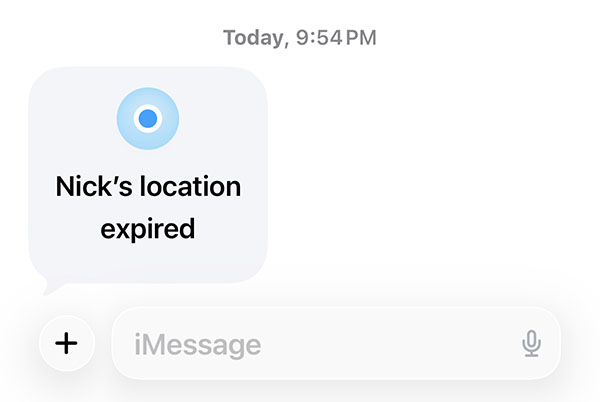
Step 1
Launch the Messages app on your iPhone or iPad.
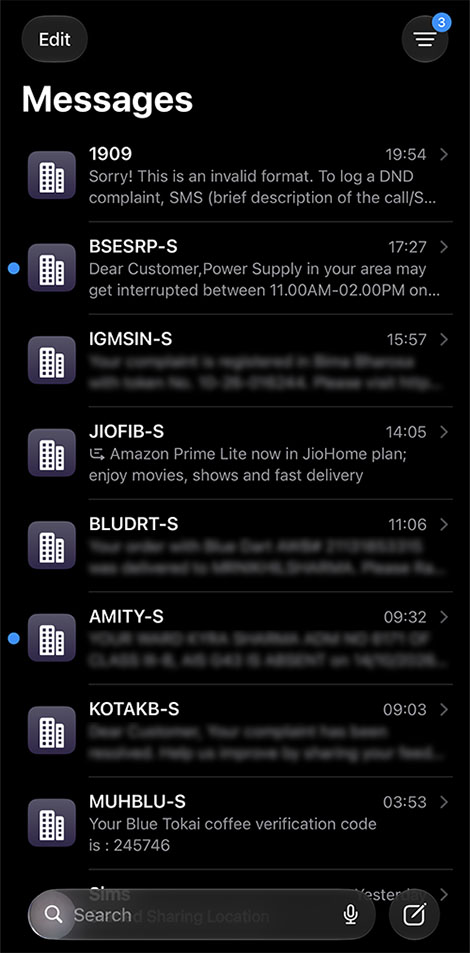
Step 2
Open the chat of the person you no longer want to share your location with.
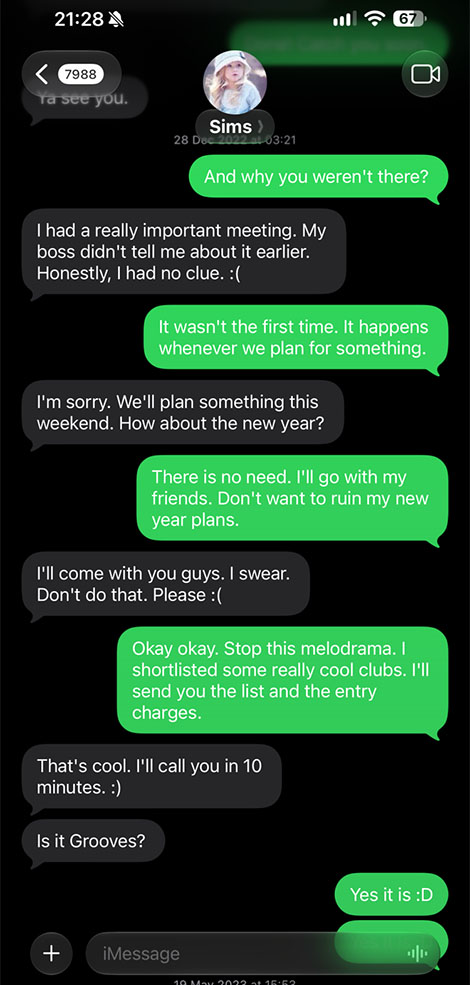
Step 3
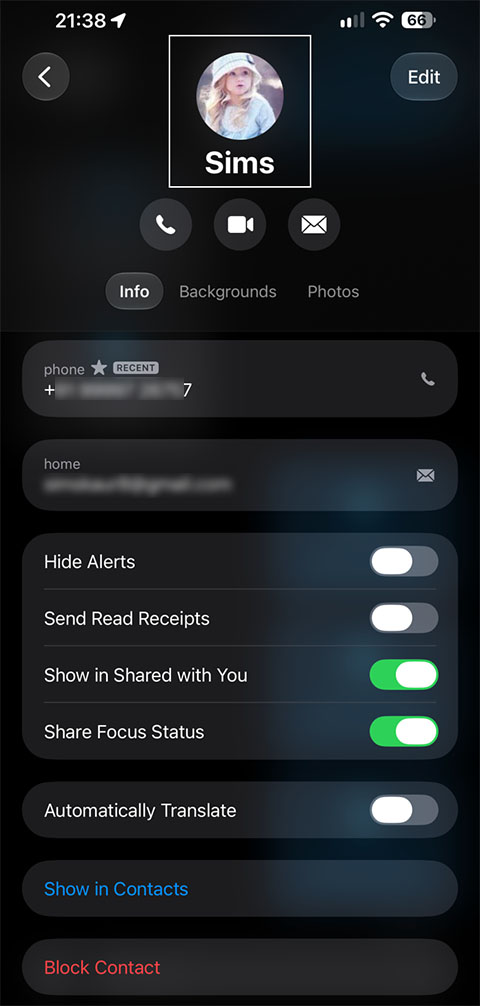
Tap their name, phone number, or profile picture at the top of the conversation.
Step 4
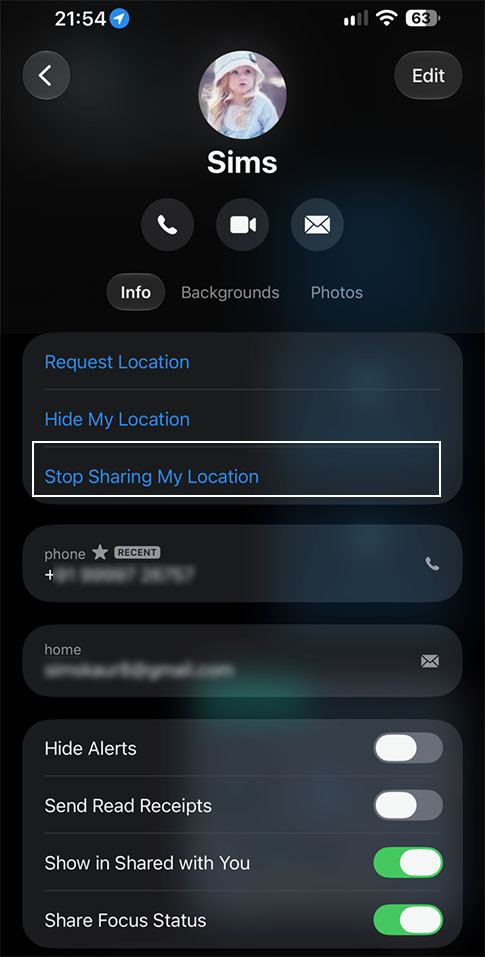
Select Stop Sharing My Location to end location sharing with that contact.
Method 2: Change Your GPS Location Discreetly in the iMessage App
If you're looking for a way to discreetly stop sharing your location through iMessage without triggering any notifications, I'd recommend using the iOS Location Changer app. With this app, you can change your location to anywhere in the world on your iOS device. People tracking your location through iMessage or the Find My app won't be able to find out that you are faking your location. If you want to keep your real location private without raising suspicion, this could be a useful option.
Before I show you how this works, use the links below to download and install the app on your computer.
Step 1: Open the iOS Location Changer on Your Computer
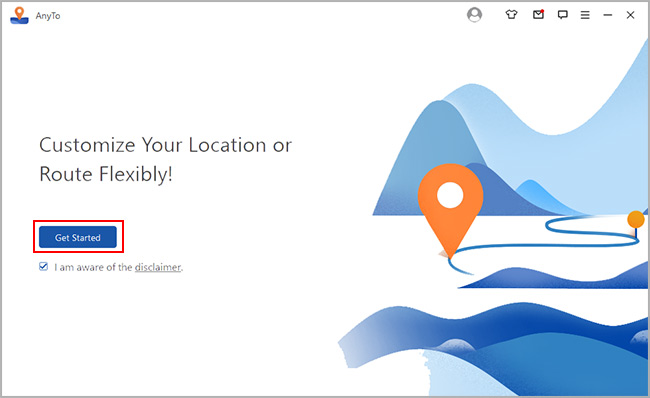
After installing the app on your computer, open the app to get started with the location-changing process.
Step 2: Connect your iPhone to the Computer and Select the Universal Mode
Once the program is running, connect your iPhone to your computer using a USB cable. Wait a few moments for the software to recognize your device.
After your iPhone is detected, select Universal Mode in the program. This option is designed to change your device's location for apps and services such as iMessage, Find My, and Life360.

Step 3: Select the Appropriate Option to Change Your Location
Once the software detects your iPhone, you can select a suitable mode to change its GPS location. The app offers two different modes, allowing you to choose the one that best fits your needs. Let's take a look at both options:
A. The Teleport Mode
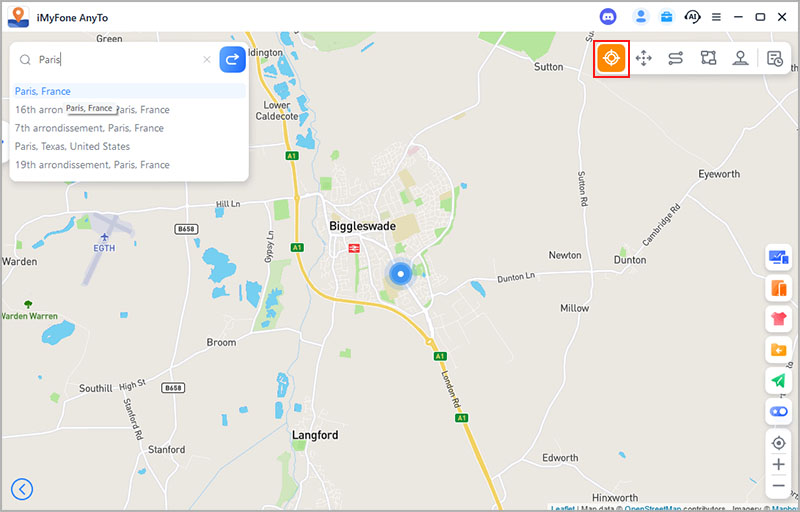
Teleport Mode lets you choose a location anywhere in the world and set it as your device's GPS location. Simply enter a place, such as Paris, in the search bar and click Move. The app will then update your device's location to the selected destination.
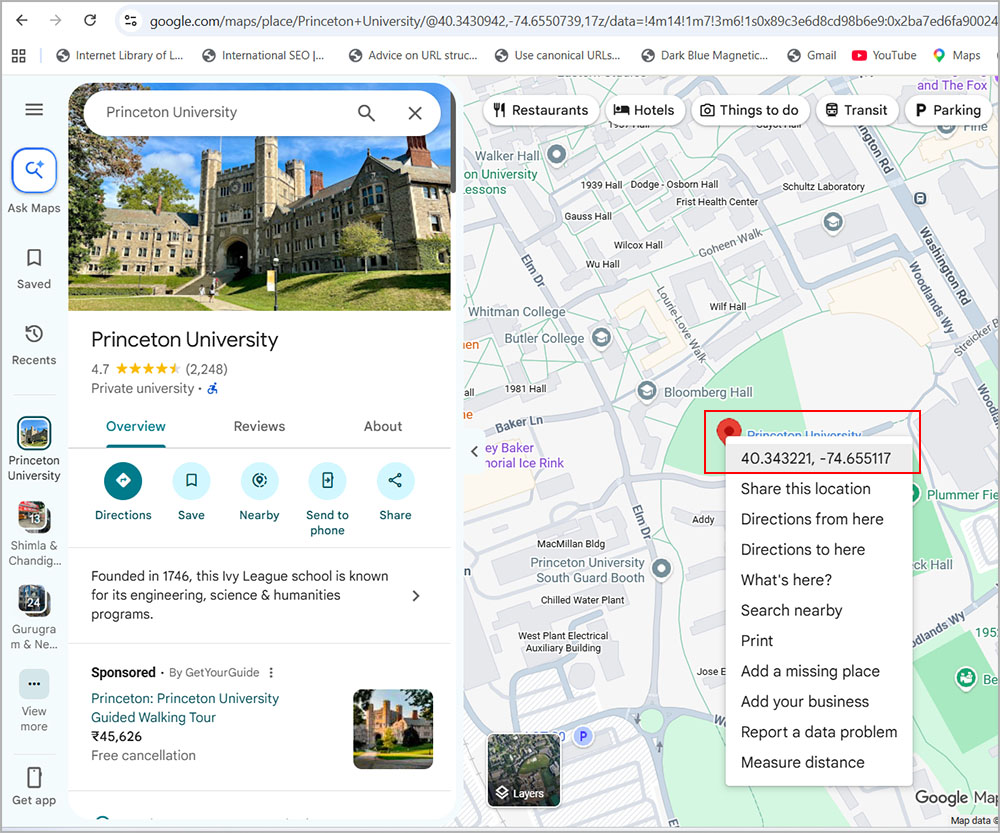
Pro Tip: Want to set your iPhone's location to a specific place, such as your home, office, or a particular restaurant? You can find the exact coordinates using Google Maps and enter the latitude and longitude values into the software. The app will then set your device's GPS location based on the coordinates you provide.
B. The Multispot Mode for Modifying Live or Real-Time Location
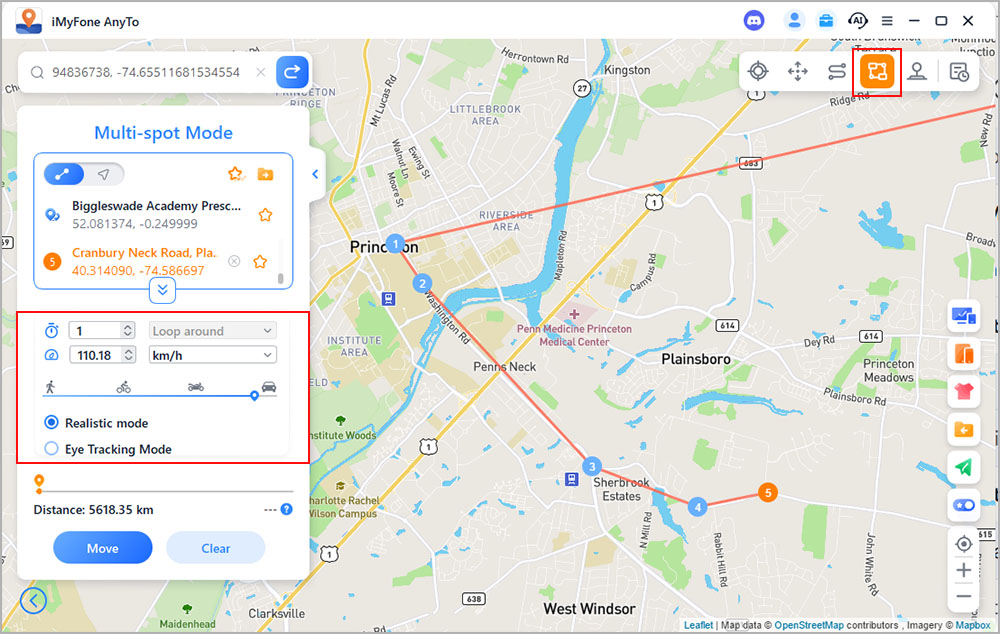
If you want to change your real-time or live location, you can use Multispot Mode, which lets you create a customized route by selecting different spots on the map. The software will then simulate your location along the route you have created. To make the simulation more realistic, you can use the Realistic Mode settings to make it appear as though you are walking, riding a bike, or driving a car.
Step 4: Click the "Move" Button to Change Location on iMessage App
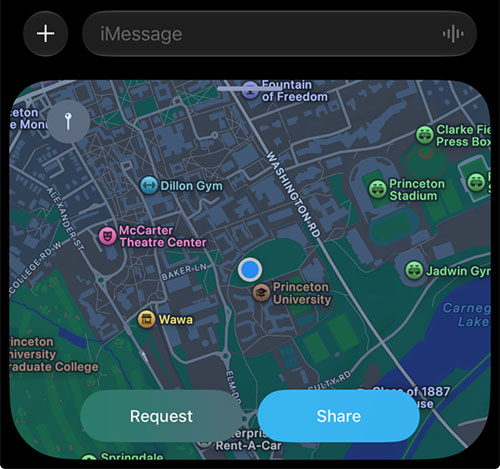
Finally, hit the "Move" button, and your iPhone's GPS location will change to the location you entered in the program. To verify that the GPS location has been changed successfully, open the iMessage app on your iPhone and try sharing your location.
Tip: To prevent your location from automatically resetting, open the Settings app on your iPhone, go to Privacy & Security, and turn off Developer Mode. If you want to restore your iPhone’s real location, simply restart your device.
So, these are a few different methods you can use to stop sharing your location or change it in the iMessage app without triggering a notification. I hope you find this guide useful!