
How to Transfer LINE Chat History between Android and iPhone
By: Johanna Parker
Posted In: iPhone Tips & Tutorials
Posted on: January 21, 2023
LINE is a secure application whose focus is to help you communicate between devices, be it Android, iOS or a variety of other platforms. It’s very secure and focused on making it really easy to connect with one another. But as time goes by, you want to buy a new phone, and maybe you want to ditch Android and switch to iPhone. What will happen with your LINE chats? With other apps you can actually lose those pretty fast, but it’s possible to transfer LINE chat history from Android to iPhone or vice versa.

There are many reasons why you want to transfer LINE chats between Android and iPhone. Maybe your old phone barely works and you need to buy a new one. Or maybe a friend wants you to have their own phone because they are upgrading. Regardless, if you are using LINE, then you do want to transfer these LINE chats from one device to the other.
One thing to keep in mind with LINE is that it doesn’t officially support this. But there are tools that you can use in order to complete this process, and with their help you can fulfill this process. You don’t have to worry about it taking too long, the transfer speeds are very fast, and you will be impressed with the efficiency and value provided by this product. That’s what makes it so distinctive and different. Process to transfer LINE chats from Android to iPhone and from iPhone to Android is bit different so make sure you follow the right method.
Part 1: Steps to Transfer LINE Chat History from Android to iPhone
If you are switching from Android to iPhone and looking to move your LINE chats from Android to your new iPhone, then these are the steps you will need to follow.
Step 1: Download & Install LINE Transfer application on your PC
The first thing you want to do is to download the iTransfer for LINE application so that you can install it on your computer.
|
|


Step 2: Prepare your Android device for transfer
Before connecting your Android device to your computer for backing up your LINE chats, you need to perform these two actions:
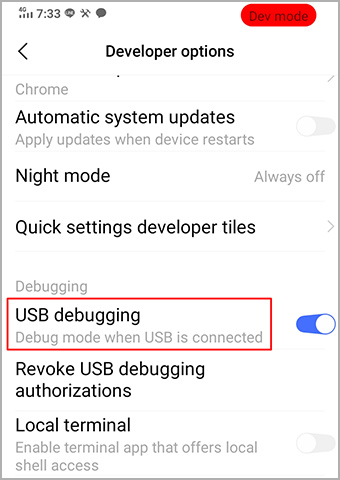
a. You need to open the Settings menu and go to About phone > Software information > Build number. Next, tap on "Build number" 7 times to unhide the Developer options menu. From the Developer options menu, you need to enable the USB debugging mode.
b. Backup all the LINE chats to Google Drive on your Android. In order to do that open the LINE app on your Android and go to Settings > Chats > Back up and restore chat history > Back up to Google Drive.

Step 2: Run 'LINE Transfer' app and connect Android to your computer
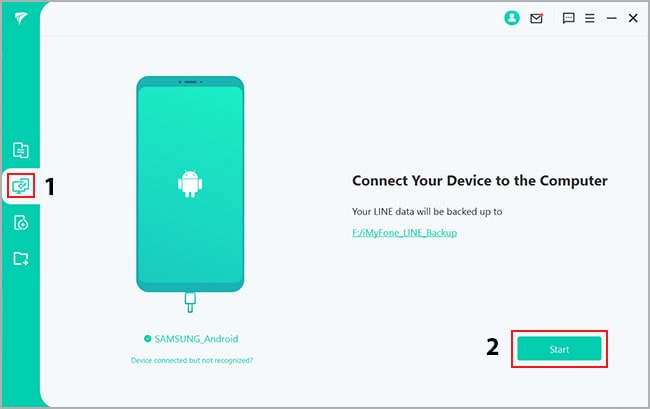
Now you will need to run the iTransfer for LINE software on your computer and connect your Android device to your computer via USB cable. Select "Backup LINE Data" mode and click the "Start" button.
Step 3: Back up LINE data to computer
Now we will back up the Android LINE data to computer and for doing that you need to scan the QR code that you can see on the software using your LINE app. To find the QR code scanner on the LINE app on your Android, go to Settings > Profile and tap on "QR code."
Login to your LINE account on computer and download the LINE data from Google Drive to your computer.

If you have everything correctly, then software will notify you about the successful backup of your LINE data (that includes all the messages and the media files).

Step 4: Download the LINE Messenger on iPhone and login to your LINE account
Now you need to download the Line app on your iPhone and login to your account you were using on your Android device. You might need to remove the SIM card from your Android and insert it on your Android to get the verification code.

Step 5: Select "Restore LINE Data to iOS" mode
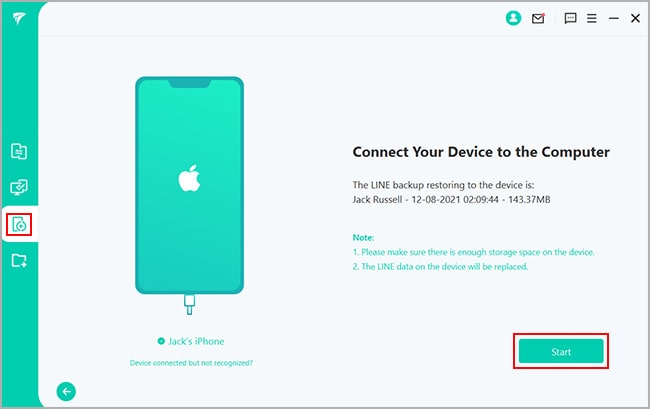
Now, you need to select the third mode that is "Restore LINE Data from Backup to iOS." After that, select the most recent LINE backup that you've made and click the "Restore" button.

Step 6: Transfer LINE chat history from Android backup to iPhone
Now is the time to connect the iPhone to your computer using your USB-C-to-Lightning cable. After connecting the iPhone to your computer click the "Start" button and the software will start transferring LINE chats from Android to your iPhone.
Note: If the software asks you to disable the "Find my iPhone" feature on your iPhone, you can go to Settings > Your Apple Profile > Find My and disable it from there. You can re-enable it after transferring LINE chats to your iPhone.
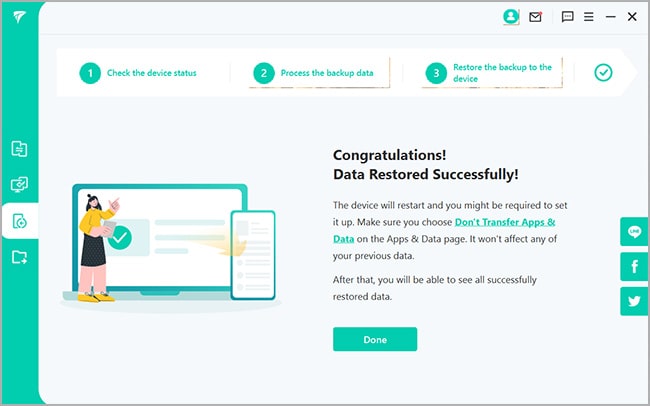
You can disconnect your iPhone from your computer when the software says that it restored the LINE data to your iPhone.
Mac OS Version

Awards & Accreditations